> For the complete documentation index, see [llms.txt](https://doc.thordata.com/doc/llms.txt). Markdown versions of documentation pages are available by appending `.md` to page URLs; this page is available as [Markdown](https://doc.thordata.com/doc/proxies/integration-tutorial/isp-proxies-integration/bitbrowser.md).
# BitBrowser
### What is BitBrowser?
BitBrowser has features such as simulating independent computer information, using different IP addresses for each window, and preventing account association to ensure that each account operates in a completely isolated environment. Its integration with Google Core enables deep anonymization and recommends clean proxy IPs, making it the ideal solution for securely managing social media, e-commerce, and other web-based accounts.
Here's how to integrate Thordata with BitBrowser.
{% stepper %}
{% step %}
[Download](https://www.bitbrowser.net/download/) BitBrowser, install and log in to BitBrowser
{% endstep %}
{% step %}
Select **\[Browser Profiles]** in the left navigation bar and click to create
 {% endstep %}
{% step %}
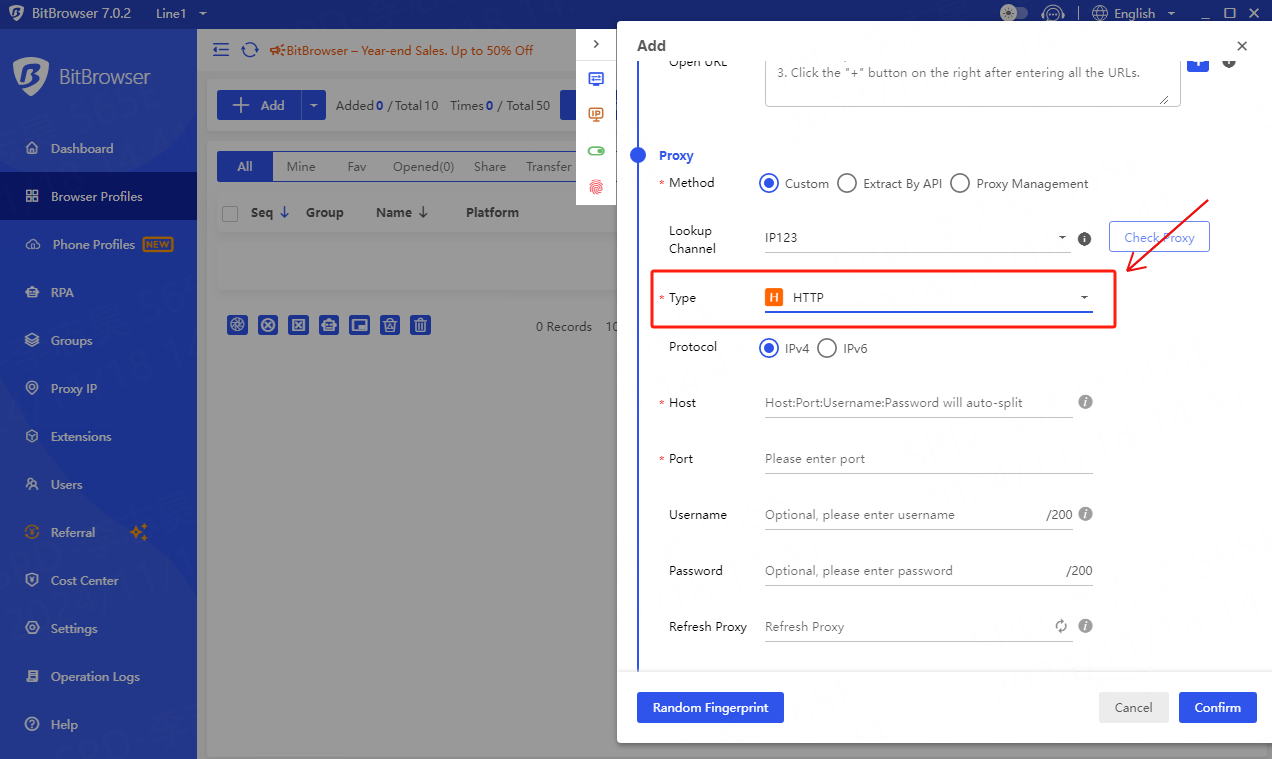
Pull down the configuration interface to the proxy module and select **\[HTTP]** for the proxy type.
{% endstep %}
{% step %}
Pull down the configuration interface to the proxy module and select **\[HTTP]** for the proxy type.
 {% endstep %}
{% step %}
Enter relevant proxy information
{% endstep %}
{% step %}
Enter relevant proxy information
 {% endstep %}
{% step %}
Click **\[Check Proxy]** and Save Browser Profile
{% endstep %}
{% step %}
Click **\[Check Proxy]** and Save Browser Profile
 {% endstep %}
{% step %}
After the configuration is completed, select the configured browser to open it.
{% endstep %}
{% step %}
After the configuration is completed, select the configured browser to open it.
 {% endstep %}
{% endstepper %}
{% endstep %}
{% endstepper %}